In a Meeting
If there is a meeting to attend, the task handler can tap In a meeting to update their status. Tasks are not assigned for the duration of the meeting.
When the option, In a meeting, has been tapped, a dialog box is displayed to set the length of the meeting.
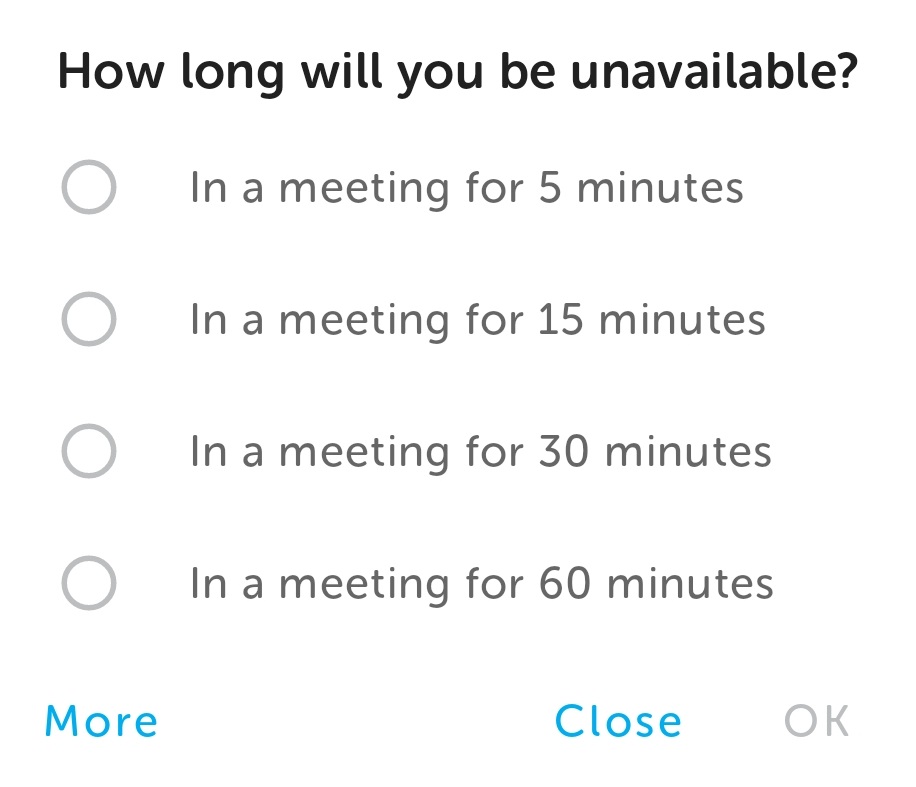
Select the length of the meeting and then tap OK.
If the meeting duration is not one of the set times or will last longer than 60 minutes, tap More and set the length of time the meeting will last. Tap OK.
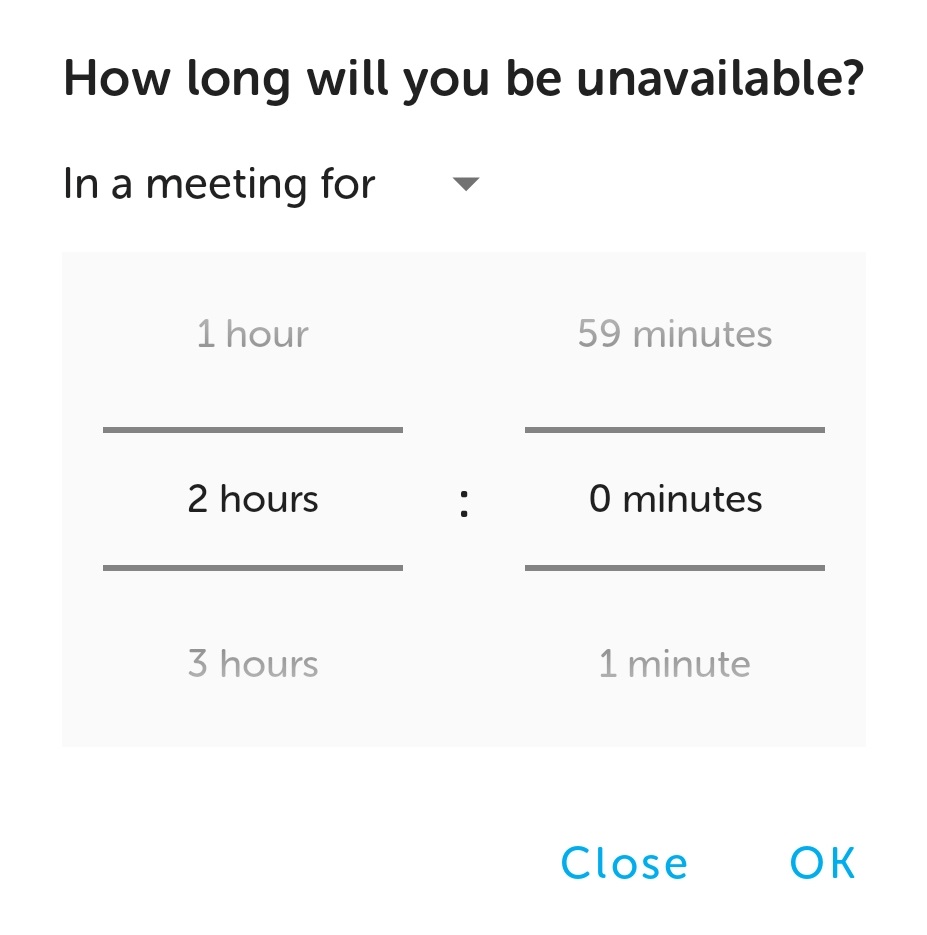
Note: The maximum length of a meeting is 4 hours by default. This is configured at system level.
A countdown begins for the duration set.
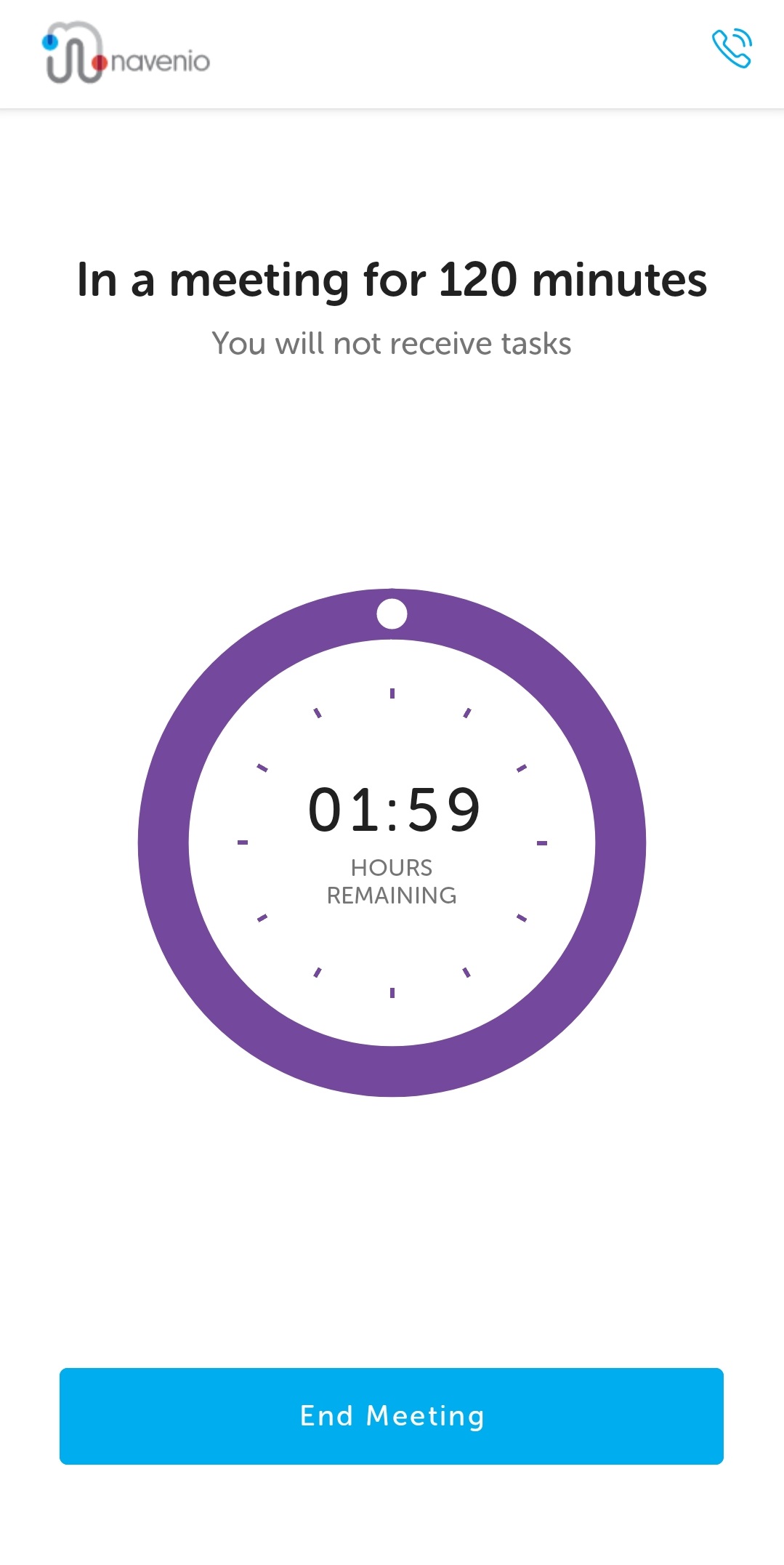
When the meeting has finished, tap End Meeting.
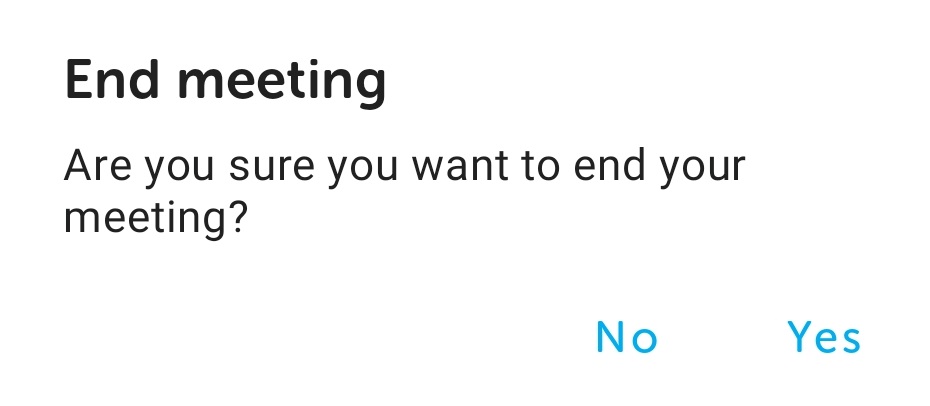
When the confirmation message displays, tap Yes. The Landing page is displayed and the task handler is "ready" and available to have tasks assigned to them.
Note: 5 minutes (timing subject to system configuration) before the meeting is due to finish,, the task handler receives a notification. If they do not end the meeting, a further notification advises when the initial meeting time has expired and the countdown clock displays the accrued negative time. The task handler's status remains "In a meeting" and tasks are not assigned to them until the meeting has been ended.
Auto-complete Meetings Configuration
There is a system configuration, Auto-complete breaks and meetings, setting that enables meetings to be completed automatically. If your system has this switched on, as a meeting nears its ending, the 5-minute notification (subject to system configuration) displays as usual but when the meeting timer reaches zero, the meeting completes automatically, the Landing screen displays and the task handler's status is set to Ready so new tasks can be assigned.