Accept a Task
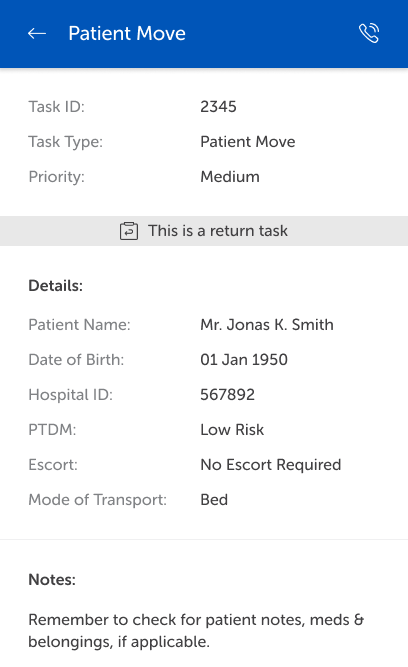
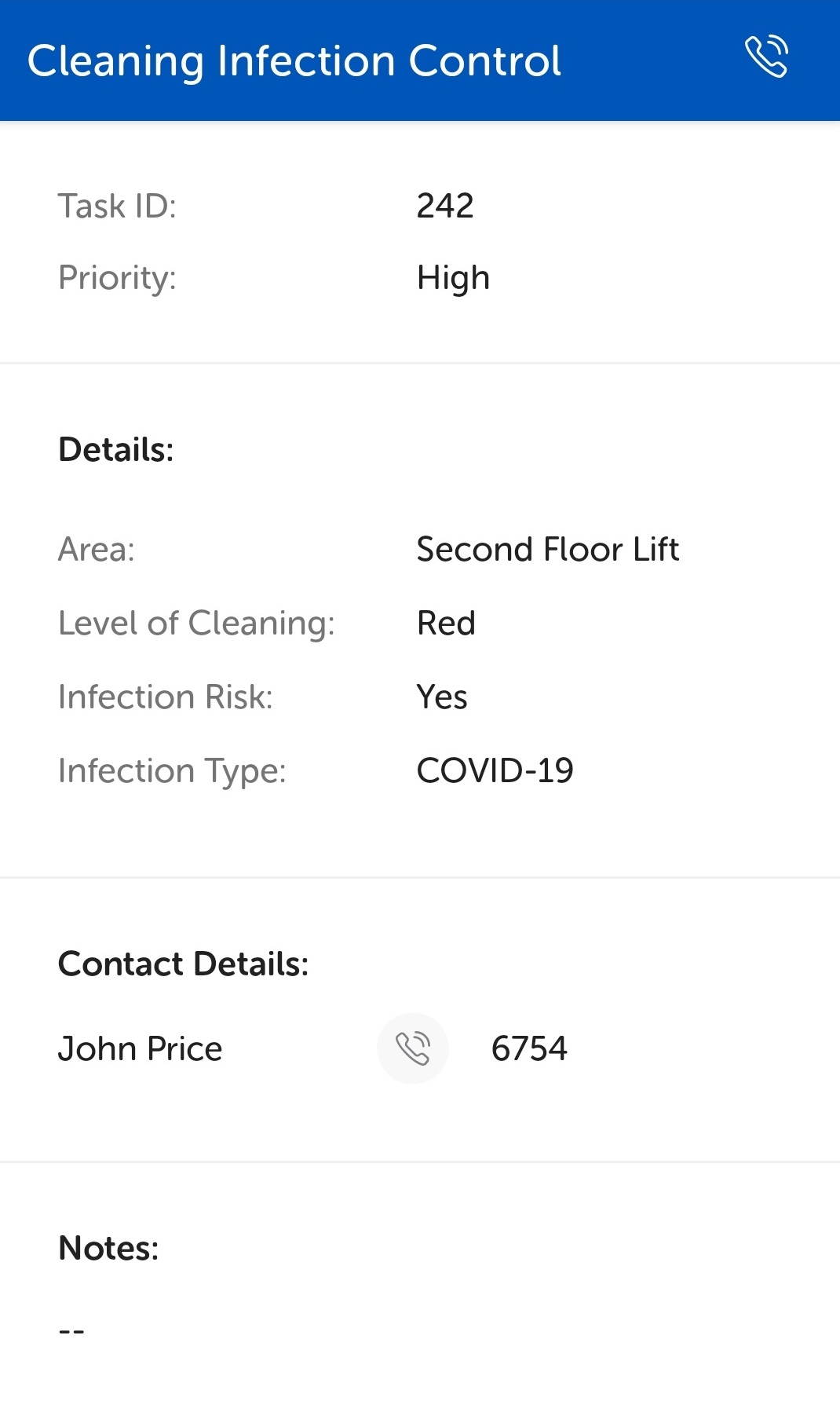
Having tapped the blue task assigned button, the task details display. Scroll down to view all the details that have been added to the task.
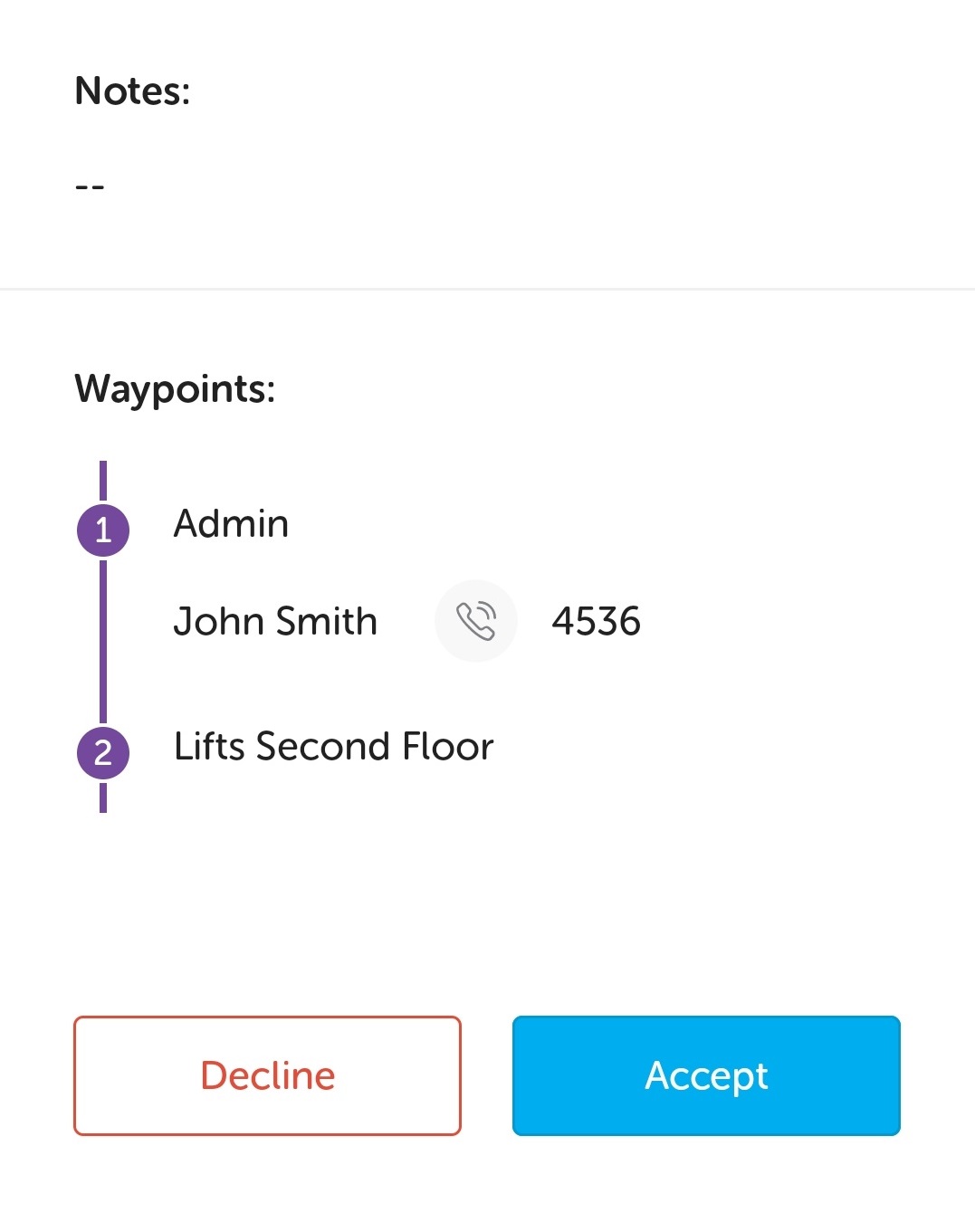
Tap Accept to perform the assigned task.
Having accepted the task, a timer displays the total time to complete the task along with information to assist you in performing the task.
Note: The contact phone numbers are not active until the task has been accepted.
Return Tasks
A task type, e.g., a patient move, can be configured to allow a Return Task to be generated from it once an outbound task of this type has been completed. A Return Task, with the same details but the waypoints in reverse order, can be generated to return the patient back to where they came from.
If the task is a Return Task, a banner displays in the task details: