Decline a Task
Tap the blue task assigned button and scroll down to view the details and any notes that have been added.
Having made the decision to decline the task, scroll down and tap Decline.
The reason to decline task dialog box displays. Select the appropriate reason for unavailability.
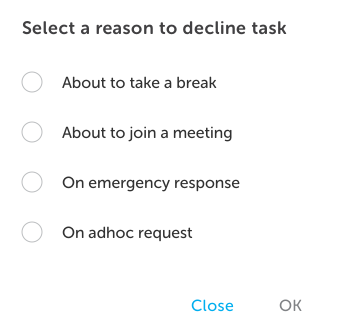
Click OK.
The next displayed screen will depend on the selected reason. For more information on breaks, meetings, emergencies and adhoc requests, please refer to the Landing Page.
The task is re-assigned to another task handler (the next nearest, appropriately skilled) and tasks you decline are shown on the Landing page under the Latest Tasks list.