Edit Recurring Tasks
Recurring Task templates can be edited should a task need some modifications.
- Click the task in the Recurring Task List to display the flyout or click the maximise button to display the Task Information view.
- Click
 at the bottom of the flyout.
The Edit Recurring Task screen displays. -
On the Recurring Task screen, the Task Type and Schedule Type fields cannot be modified.
-
Click Next.
-
In the Task Details, Waypoints and Other Information screens, the fields can be modified as required. Click Next to proceed from one screen to the next until you are on the Other Information screen where you click Submit Task.
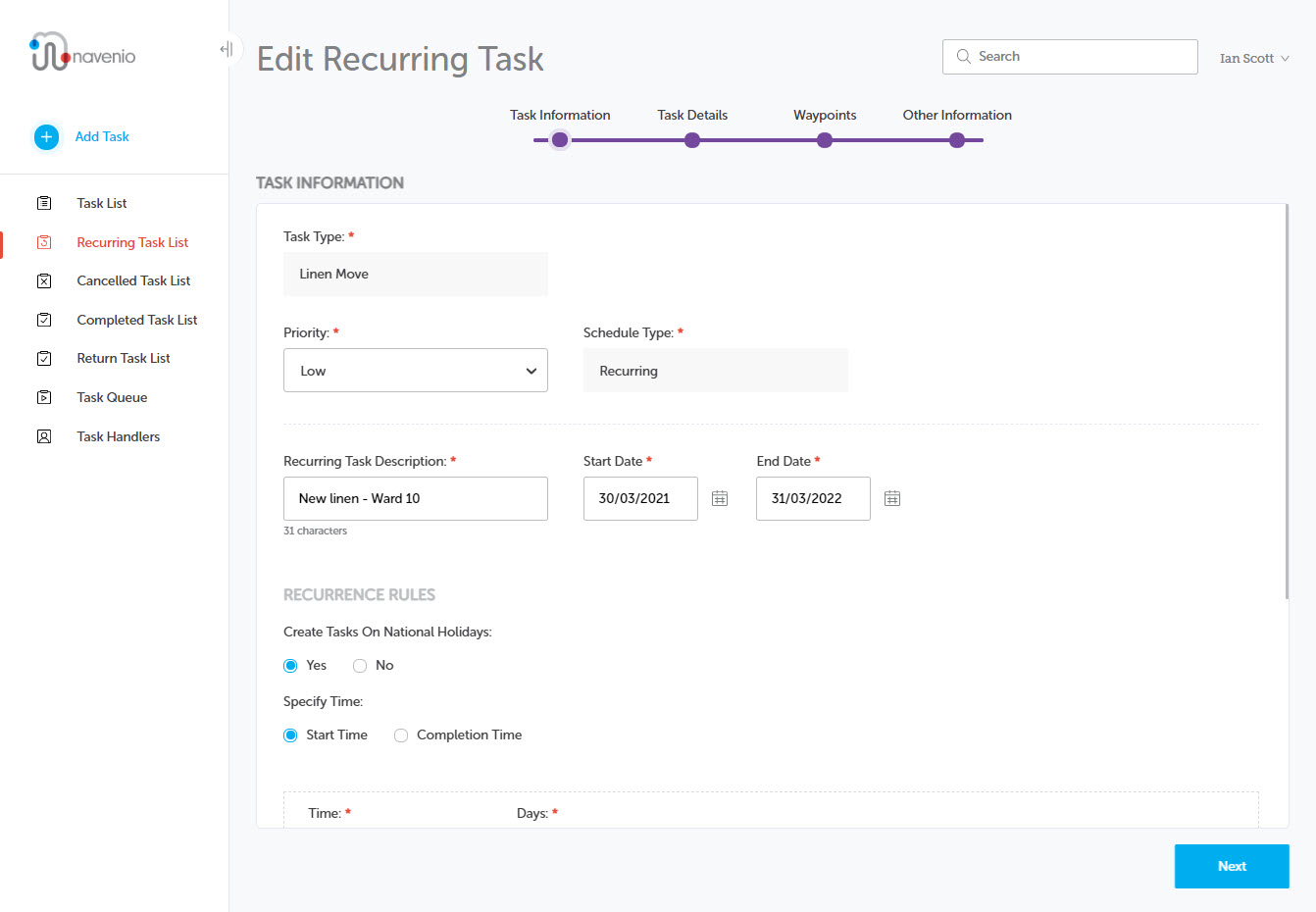
The Recurring Task Description, Start Date and End Date fields can be modified as can the Recurrence Rules and the Priority field.
The Recurring Task List screen displays with a confirmation notification.
The recurring task is added to the Recurring Task list page which reflects the modifications made to the task.
Note: Recurring Task templates, which are configured to require approval, will go through the approval process unless you have approval permission in which case it will display on the Recurring Task list.