Recurring Task List Screen
The Recurring Task List page is displayed only to users who have permission to create, view and manage recurring tasks.
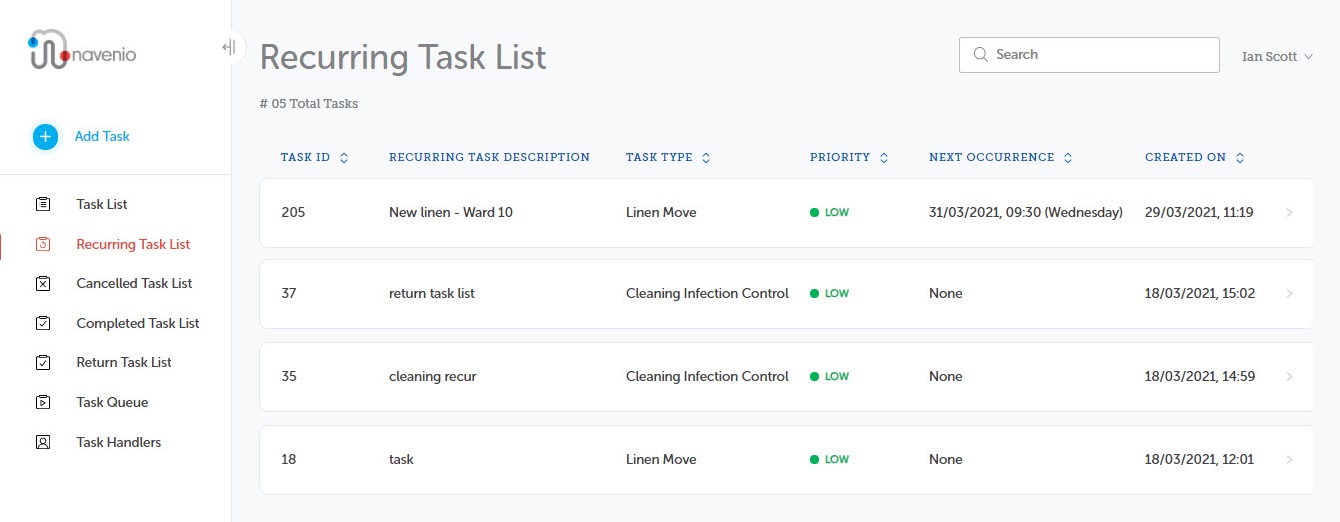
The columns in the Recurring Task List are:
-
Task ID
-
Recurring Task Description
-
Task Type
-
Priority
-
Next Occurrence
-
Created On
Click on the task to display the flyout with the task's details. The flyout screen is closed by clicking the close icon  in the top right-hand corner or by clicking anywhere outside of the flyout.
You can also view this information in a maximised window, the Task Information view, by clicking the  button. The task information screen is closed by clicking on the navigation bar
See the Flyout and Task Information topic for further information.
The flyout displays the Recurring Task Description and information on who created the task and when it was created and the task ID.
The flyout displays, amongst other items, details on the recurrence:
-
The Enable/Disable Task field is used to enable or disable the task.
-
The Scheduled For field displays the Start Time or Completion Time which includes the from and to dates for the task and the interval(s) which display the time for the task and the days the task is to take place on.
-
The Next Occurrence field displays the time, date and day of the next instance of the task.
-
The Create Tasks on National Holidays field displays Yes or No as set in the task.
If you have permissions to manage the recurring task list, two buttons are displayed which enable you to Edit Recurring Tasks or Delete Recurring Tasks.
Note: When a recurring task template has completed all its instances, None is displayed in the Next Occurrence field.